
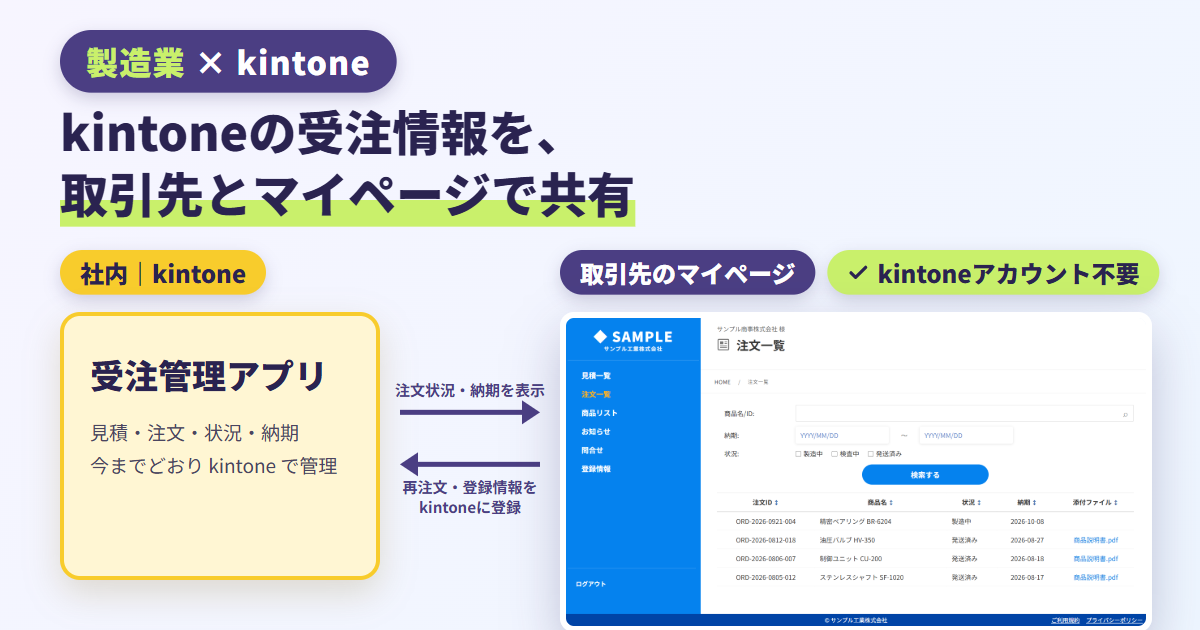
To share kintone order data with customers, you can build a login portal that shows each customer only its own orders. Your team updates order data in your existing kintone apps, and customers check order status and delivery dates on the portal without kintone accounts. You will answer fewer delivery-date questions by phone and email. Kanal-WEB is a service for building this kind of customer portal from your kintone data.
Using a manufacturer that manages orders and projects in kintone as an example, this article follows one order through delivery-date checks, shipping notices and the next reorder, with screenshots at each step. The demo setup shown here is based on interviews with three customers who also manage orders and projects in kintone.
Inquiries that reach sales admin staff
In those interviews, most of the inquiries they receive from their own customers could have been answered just by showing the data: project progress, delivery dates, product manuals and documents, and past order details. They receive two or three such inquiries a day on average, and sometimes about ten in busy periods.
What bothered them more than the volume was the following:
- Repeated back-and-forth: When inquiries arrive with vague part numbers or product details, emails go back and forth just to confirm them
- Customers cannot get information when they want it: Inquiries also arrive on weekends and at night, and some customers find waiting for an answer stressful
- Constant copying and re-entering: Staff copy kintone data into email replies, and even a change of a customer's contact person means updating kintone by hand
Reducing delivery-date inquiries with a portal
Let customers check for themselves on the portal. The sections below follow one order step by step.
1. Customers check progress and delivery dates on the portal
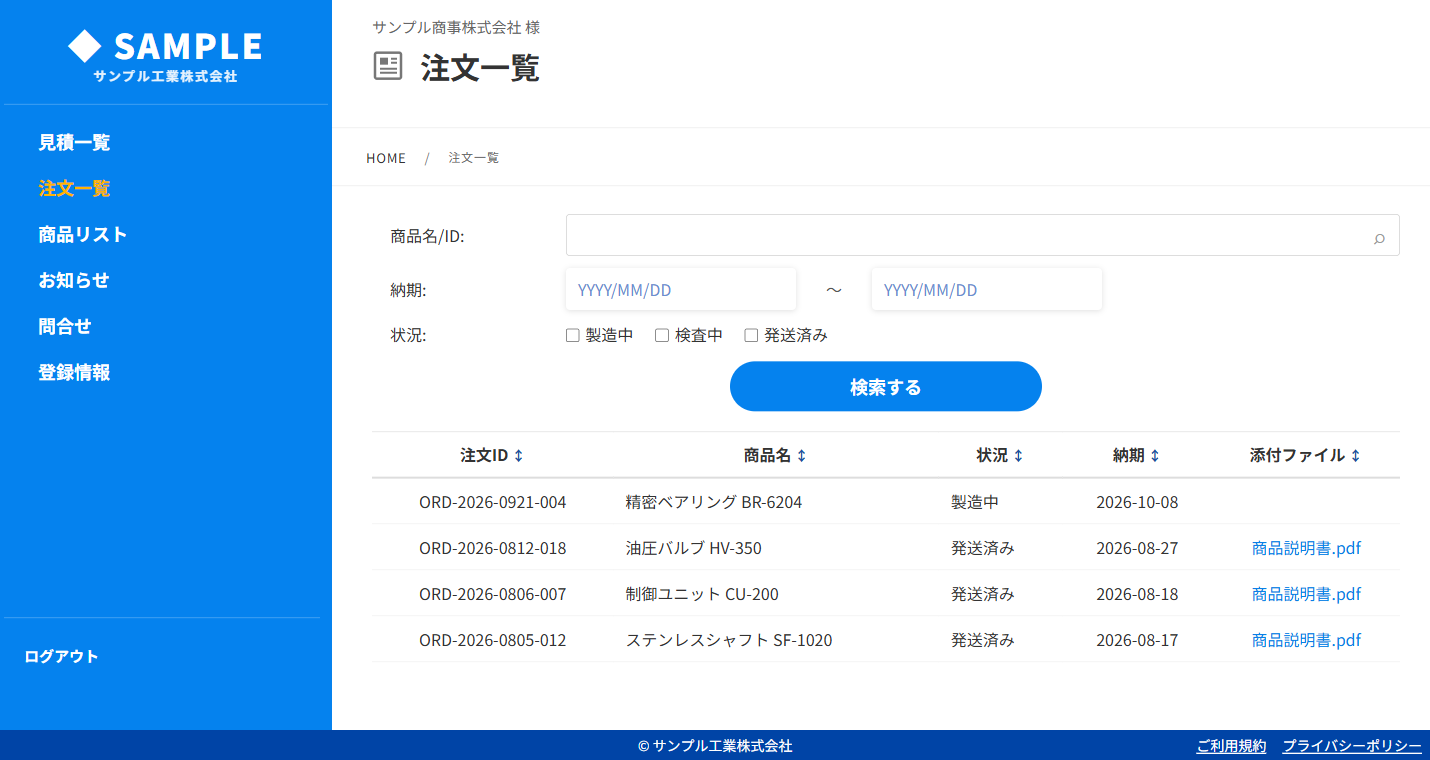
Customers log in to the portal and see the status (in production, in inspection, shipped) and delivery date of their own orders in the order list. You choose which fields customers can search by, so if you pick the ones they find easiest, they can find the answer before asking. In this example, they can search by product name or order ID, delivery date range and status. What they see is what your staff updated in kintone, so there is no need to enter data in both kintone and the portal.
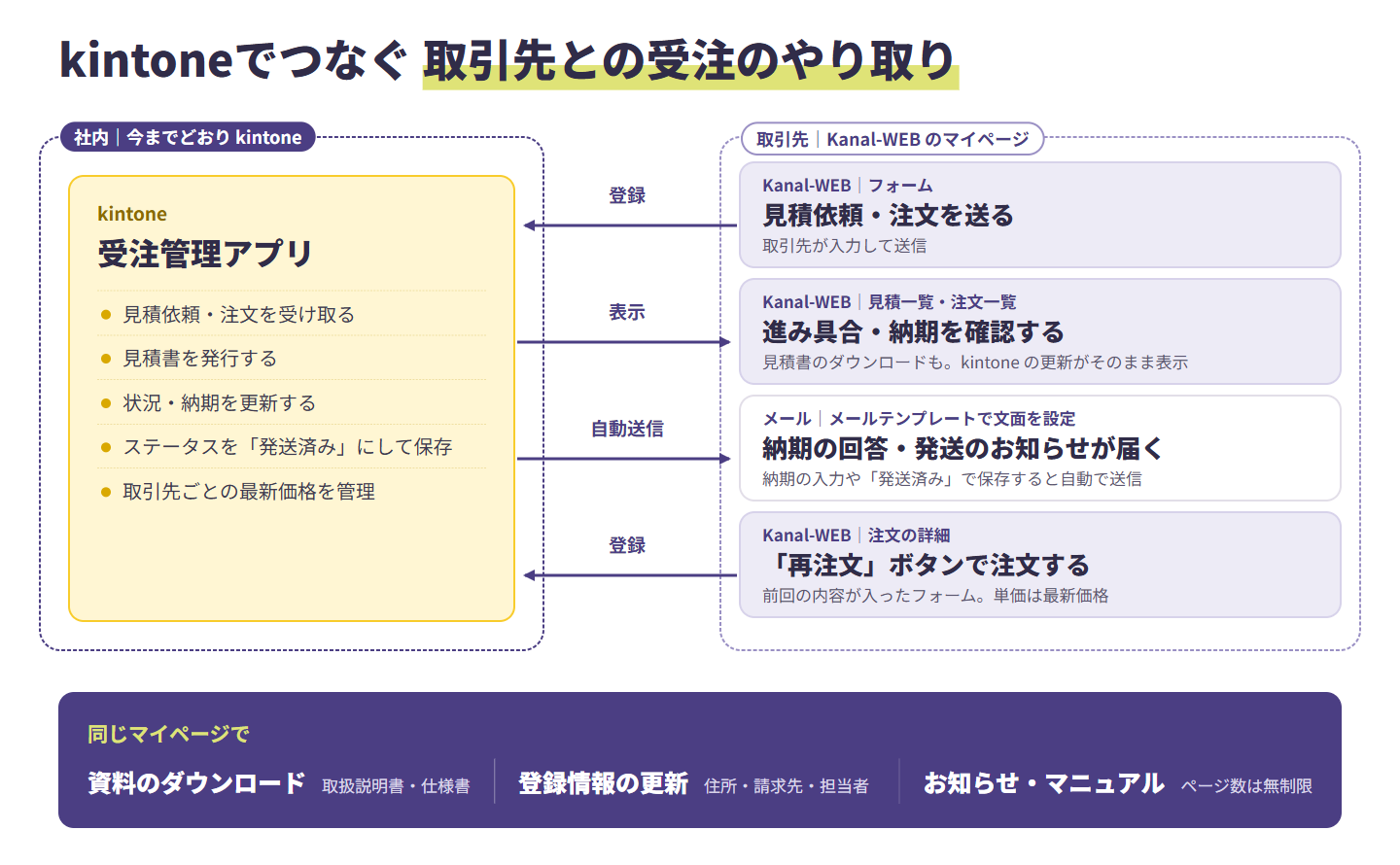
When your staff enter and save a delivery date in kintone, the customer can also be notified by email. Even if customers do not check the portal, they hear about the date as soon as it is set.
Do you need a separate app for each customer?
No. In kintone, orders from all customers are managed in one app. On the portal, group permissions are assigned per customer so that each logged-in customer sees only its own records. If a customer has several contacts, adding them to the same group lets them share their company's orders.
2. Saving an order as shipped in kintone emails the customer
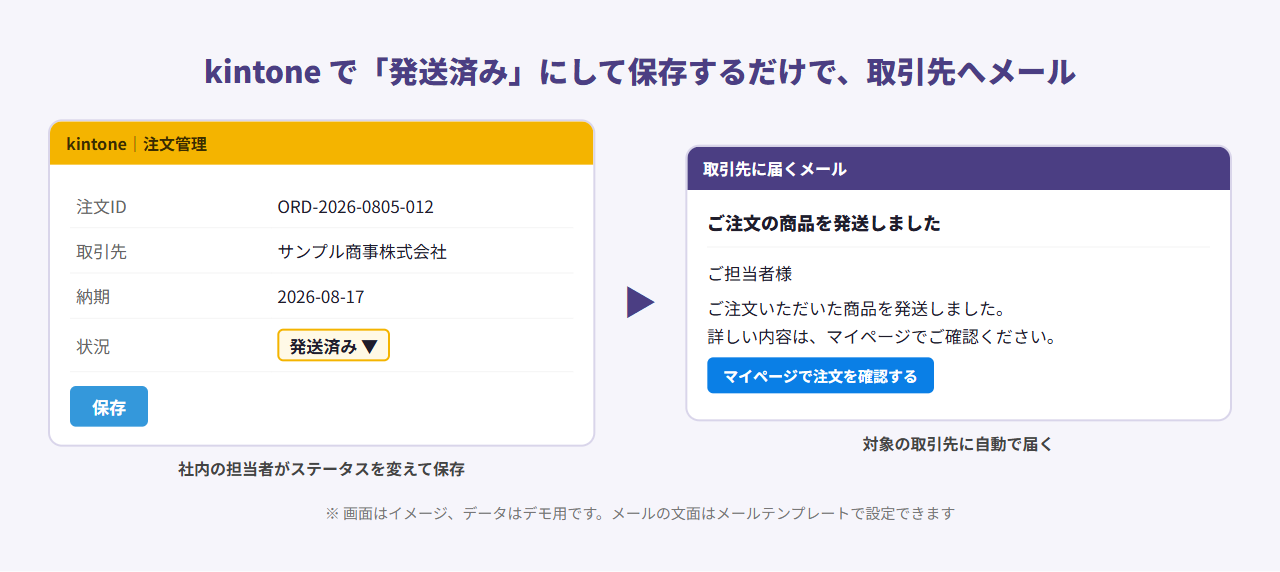
Your staff only need to change the order status to "Shipped" in kintone and save. A shipping notification is then sent to the customer automatically, so you can let them know before they have to ask whether it has shipped. A button in the email opens the order on the portal. If the notification is set to send when the status is "Shipped", the same email is not sent again when the order is saved again while still shipped. The email text is set up with email templates.
3. Reordering the same product from the order details
"I'd like to order the same product as last time, but I don't know the part number." Until now, sales admin staff searched past orders and emailed the part number back. On the portal, customers can complete the order themselves in three steps.
- Search the order list: Find the previous order by product name or order ID and the rough delivery date range they remember
- Check the details: Confirm the part number, order details and delivery date, then press "Reorder"
- Submit the form: An order form opens with the previous details filled in. The product lookup fills in the current unit price, which cannot be edited. Customers adjust the quantity and submit
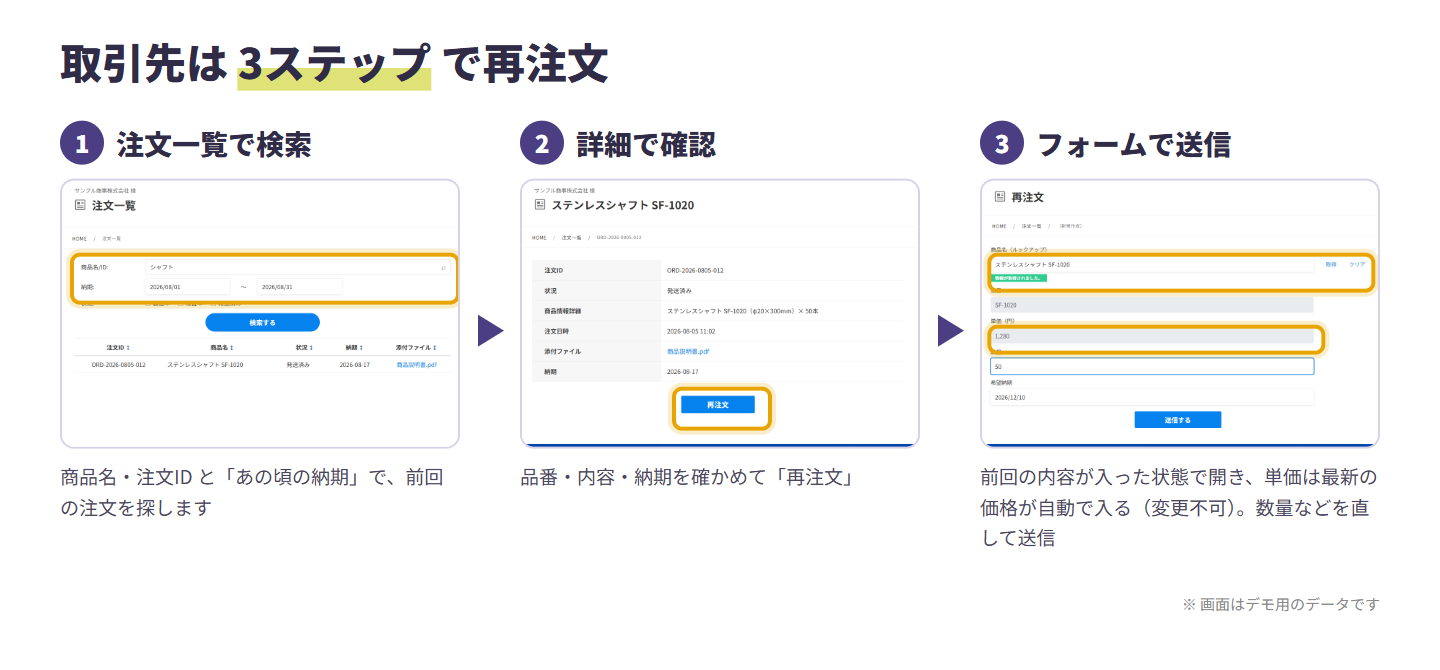
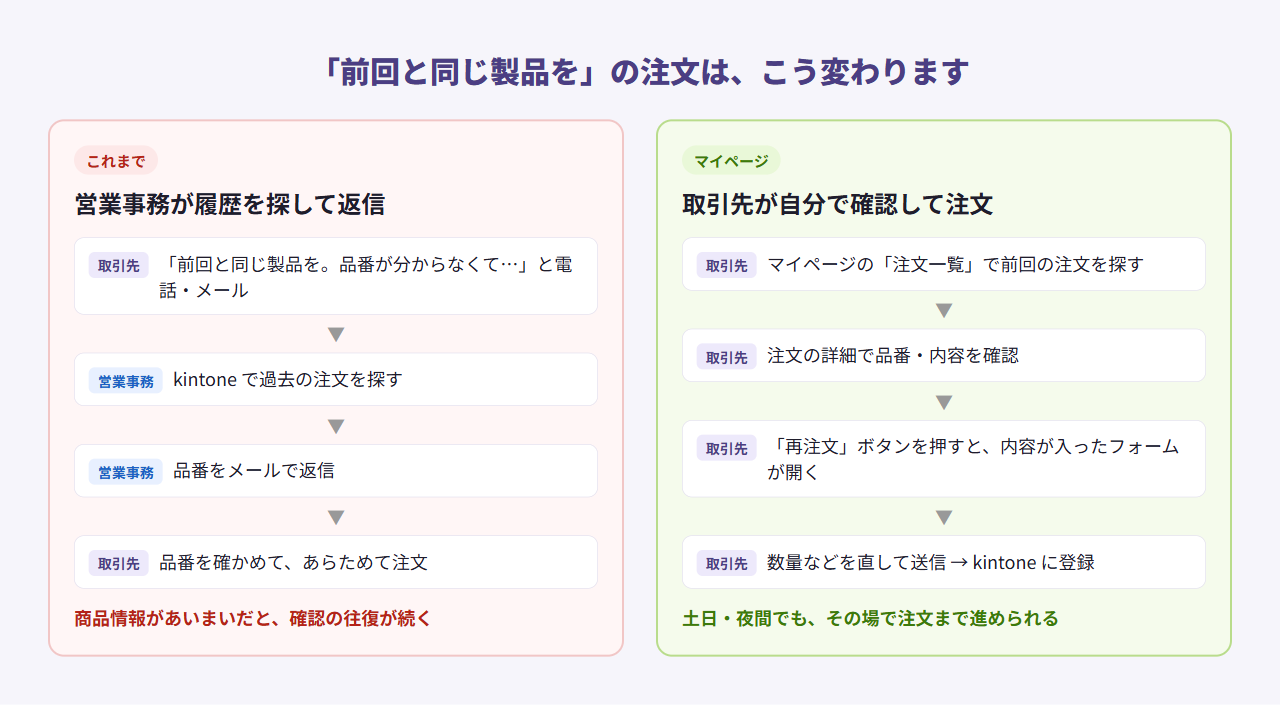
By combining standard features, you can set up the order details page to open a reorder form. Add a URL field to your kintone app, and a button appears on the portal's details page. Pressing it opens a form with the values from the details page as initial values. Submitted orders are registered in kintone.
Unit prices differ by customer even for the same product. Can customers see other companies' prices or orders?
No. Kanal-WEB can show only the records linked to the logged-in customer. Even if Company A and Company B order the same product at different prices, Company A sees only its own orders and prices when it logs in, and Company B sees only its own.
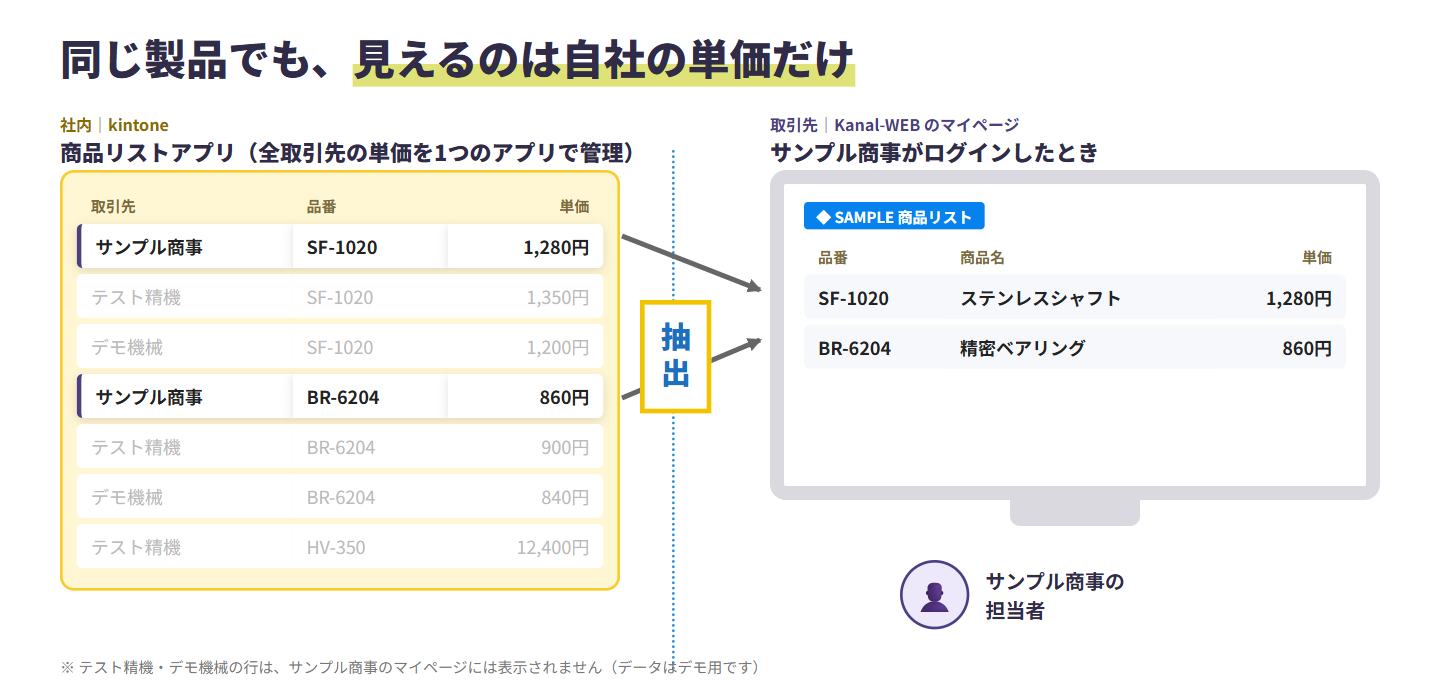
The unit price on the reorder form is not the price from the previous order. Because the form uses a lookup to fetch prices from a customer-specific product master, it enters that customer's latest price at the moment the customer presses "Get". When you revise a price in the kintone product master, the new price is fetched once the record is saved.
What else the same portal can do
Quotes, orders, products, announcements, inquiries and account details can all live on one portal.
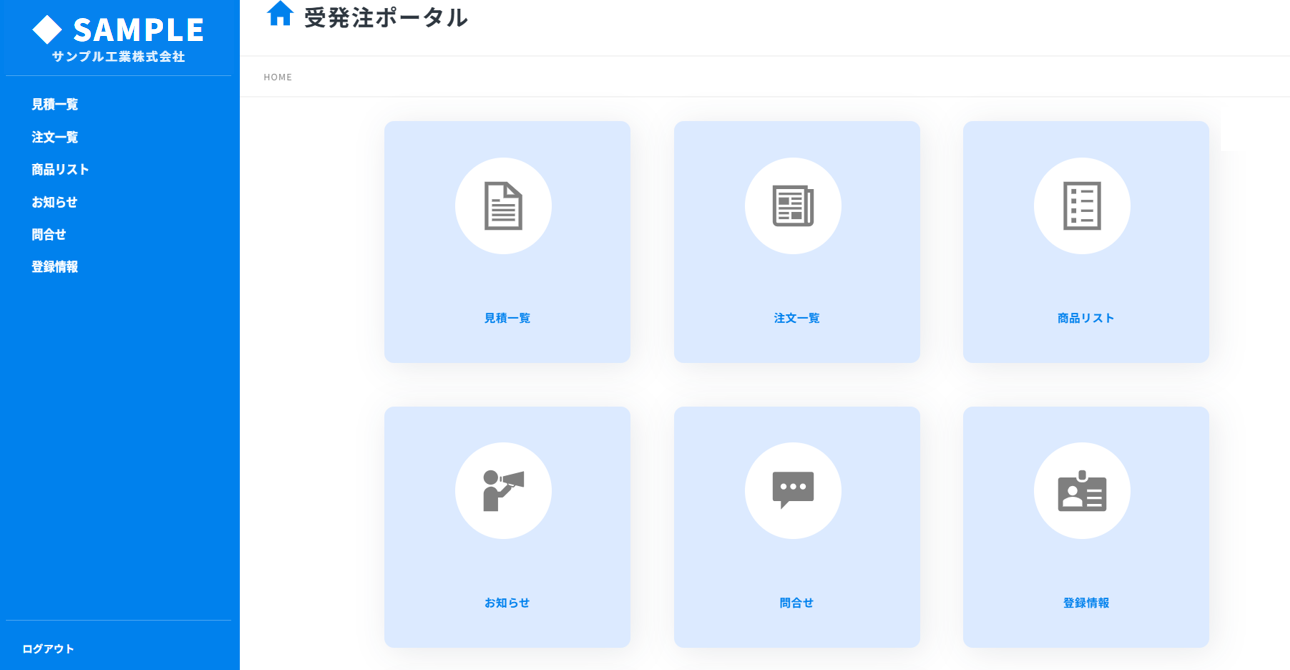
- Document downloads: Customers can download manuals and specifications for each model, as well as quotes, whenever they need them. Requests to reissue a quote can be handled the same way
- Account updates: When a delivery address, billing details or a contact person changes, customers can update it themselves. Changes are reflected in kintone, so no one has to re-enter them
- File uploads: Instead of attaching documents received by email to kintone, customers log in and upload them, which also reduces attachment mistakes
- Announcements and user manuals: Create as many announcement and manual pages as you need on the portal
- Activity history: Your team can see whether customers have viewed documents (a Standard plan feature)
Expected results
Once customers can check delivery dates themselves, sales admin staff spend less time opening kintone for every inquiry and copying the details into email replies. The problems listed at the start change too. Customers can check part numbers and order details on screen, so you can cut down on vague inquiries and back-and-forth. Even on weekends or at night, customers can check delivery dates and reorder on the spot. Shipping emails go out automatically and customers update their own addresses and contacts, so you can also cut down on copying and re-entering between kintone and email.
What to check when choosing a way to share kintone with customers
When comparing ways to share kintone data with customers, check the following points. We also show how Kanal-WEB answers each one.
- Do customers need kintone accounts?
- Kanal-WEB: No. Customers simply log in to the portal
- Can each customer see only its own data?
- Kanal-WEB: Yes (standard feature)
- Can customers reorder and update addresses, not just view data?
- Kanal-WEB: Yes (standard feature)
- Can customers be emailed when kintone is updated?
- Kanal-WEB: Yes (for example, when a delivery date is entered or an order is saved as shipped)
- Do costs rise as you add customers?
- Kanal-WEB: No. There is no limit on the number of portal users
- Can you keep using your current kintone apps?
- Kanal-WEB: Yes (you need to add fields for Kanal-WEB settings and clean up some data)
Rolling it out to customers
In our interviews with the three companies, it took at least three to four months before their customers were actually using the portal. Even after the portal was finished and invitations were sent, customers were slow to log in, so invitations and login guidance had to be repeated. We recommend proceeding in this order.
- Add fields for Kanal-WEB settings to your current kintone apps and clean up the data (if you use a customer master app, email addresses are required for invitations)
- Set up the portal screens and emails
- Instead of inviting everyone at once, start with customers you work closely with and spend about a month improving the portal
- Invite all customers and keep providing login guidance
Can you help us build it?
During the 30-day free trial, you can receive two hours of free support. We do not build portals ourselves, but we can introduce partner companies that do.
The setup in this article (delivery-date checks, shipping notices and reorders) can be built on the Light plan (¥20,000 per month, excl. tax). There is no limit on the number of portal users. Activity history requires the Standard plan (¥50,000 per month, excl. tax). A separate kintone Standard Course subscription is required. See the pricing page for details.
In a free online consultation, we will show you a demo and explain how to guide your customers through the rollout. To see the ordering screens in more detail, also read our introduction to the order management online demo.