When you manage customers and deals in kintone, such as customer information and deal status, we recommend building your apps around a proven structure (a template) that incorporates the key points for making kintone easy to use.
Following this structure not only makes your apps easier to use, but also makes them easier to customize for your own company.
In this article, we introduce the basic structure for building a customer management system in kintone.
- You are creating a kintone app for the first time
- Several people run your apps, so their quality is inconsistent (there are no rules for building them)
- You went to the trouble of building apps, but no one is using them
If you face any of these challenges, we hope this article will help.
■kintone content supervised by: Mitsuaki Ando, kintone Evangelist
Fill out the form to download our three-part introduction to bitRiver (company overview, track record, and service features).
What Is a User-First App?
Simplicity is essential in customer and deal management designed to make operations more efficient.
By "simple," we mean optimizing an app's form and list screens so that users can easily find the information they need.
Be careful not to cram too many fields into an app or keep creating new apps in an effort to deliver more information. What matters is whether the app is useful and easy to use for its users.
Here, "users" means the people who want to get some kind of information, or achieve some goal, from the kintone environment you built.
Characteristics of an Easy-to-Use kintone
An easy-to-use kintone has the following characteristics.
- It is intuitive to operate
- It has no unnecessary fields
- It provides the information you need, when you need it
When building customer or member management systems in kintone, we make the following specific proposals to achieve this.
- Interview users about what information they need and when, then place that information somewhere easy to find in kintone, such as a prominent spot on the portal screen or at the top of the app.
- When users who need different information, such as sales, administration, and manufacturing staff, all use kintone, store the information in separate spaces for each department. This lets you present information in the way that best suits each user.
A user-first app is about more than just what goes into the form.
For a customer management app, an easy-to-understand form is a given, but it is just as important to create a seamless path to the next action once users have found the information they need.
We also recommend splitting apps by business task.
The Basic Structure for Customer and Deal Management
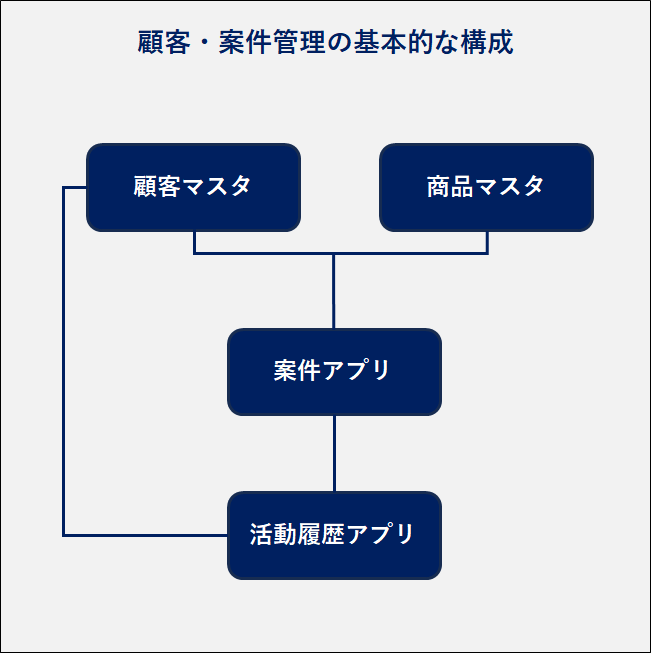
A basic customer and deal management setup uses the app structure shown in the diagram.
Let's go through each element.
Customer Master
The customer master serves as the source of information that other apps reference.
In addition to basic information such as company name and phone number, it is a good idea to include the information you will want when using other apps.
Always include a customer ID, and set it as a required field that does not allow duplicate values. If an ID changes after it has been entered, the relationships between data across apps will break, so use field permissions and record permissions to control who can change it.
The key here is the Related Records field. Set it up so that when you open a customer master record, you can see all the information associated with that customer, such as deal information and activity history, on a single screen.
This is the foundation for keeping things "simple."
Product Master
To streamline data entry when creating deals and prevent input errors, always include the product ID, product name, and unit price. Adding fields such as product category as needed will also help with analysis.
Deal App
The deal app has many important settings.
Process Management
"Process Management" is a kintone feature for running workflows. The kintone Help describes it as follows. It also explains how to set it up, so be sure to read it if you have never used the feature.
You can set up processes for multiple users to edit and review records.
You can also manage approvals of requests and decisions on proposals in an app and use it like a workflow.
You can also manage tasks that multiple users work on, such as task management and complaint handling.
Source: What You Can Do with Process Management
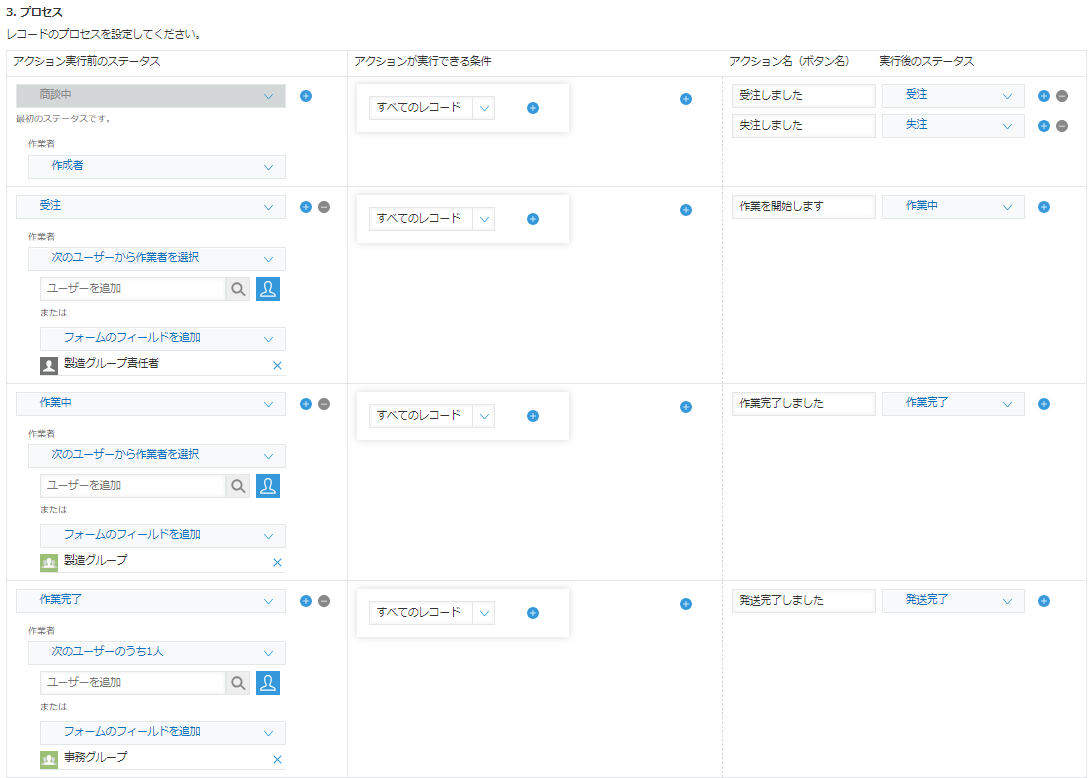
You can set up workflows that span departments such as sales, manufacturing, and administration, and make assignees and statuses visible.
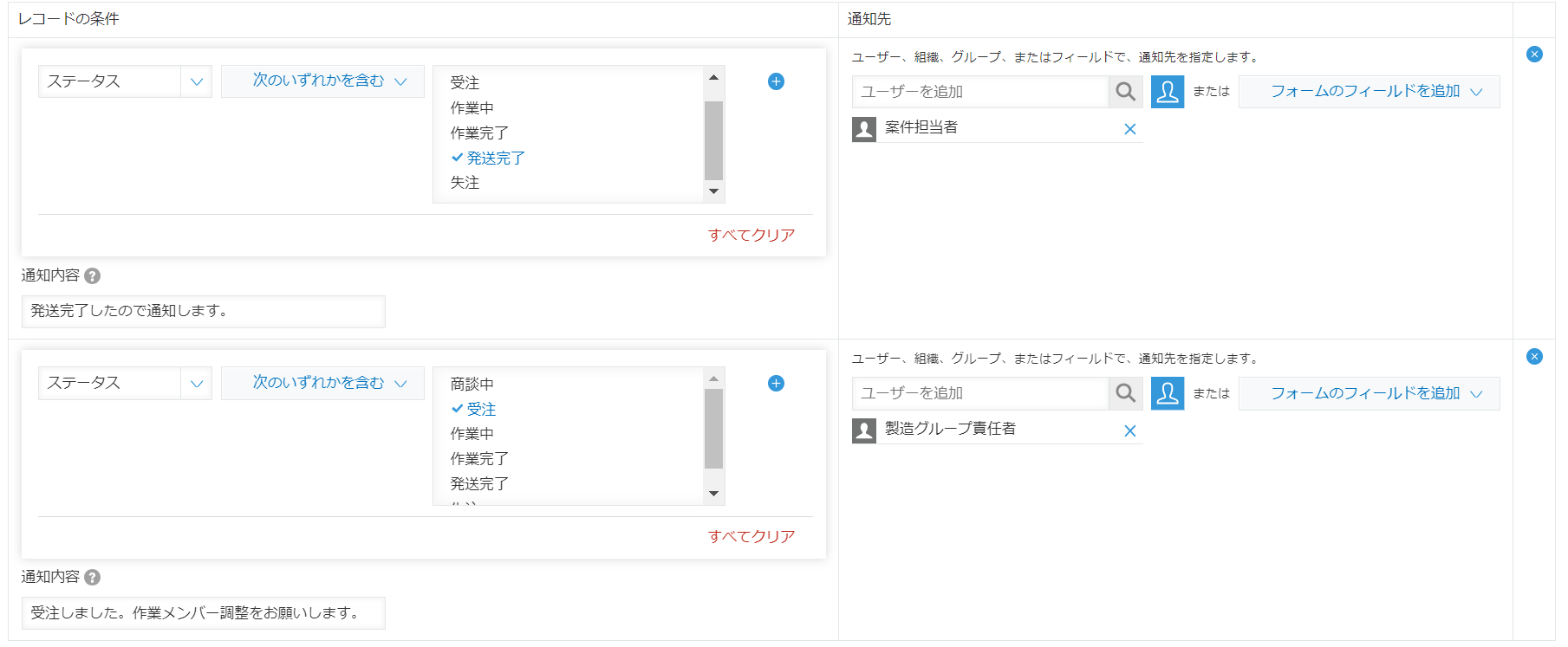
Record Condition Notifications
You can notify users when a record meets specific conditions.
App Actions
With App Actions, you can copy record data to a specified app.
It is a very handy feature that simplifies data entry and prevents input errors.
Source: What You Can Do with App Actions
Activity History App
The activity history app accumulates information that becomes a company asset.
Making "who did what, and when" visible helps when responding to customer inquiries or handing over work. We recommend replacing paper daily reports with activity history records linked to your customer data.
The Basics of an Easy-to-Use kintone
An easy-to-use kintone has the following characteristics.
- It is intuitive to operate
- It has no unnecessary fields
- It provides the information you need, when you need it
An app is built from the following elements.
Form Screen
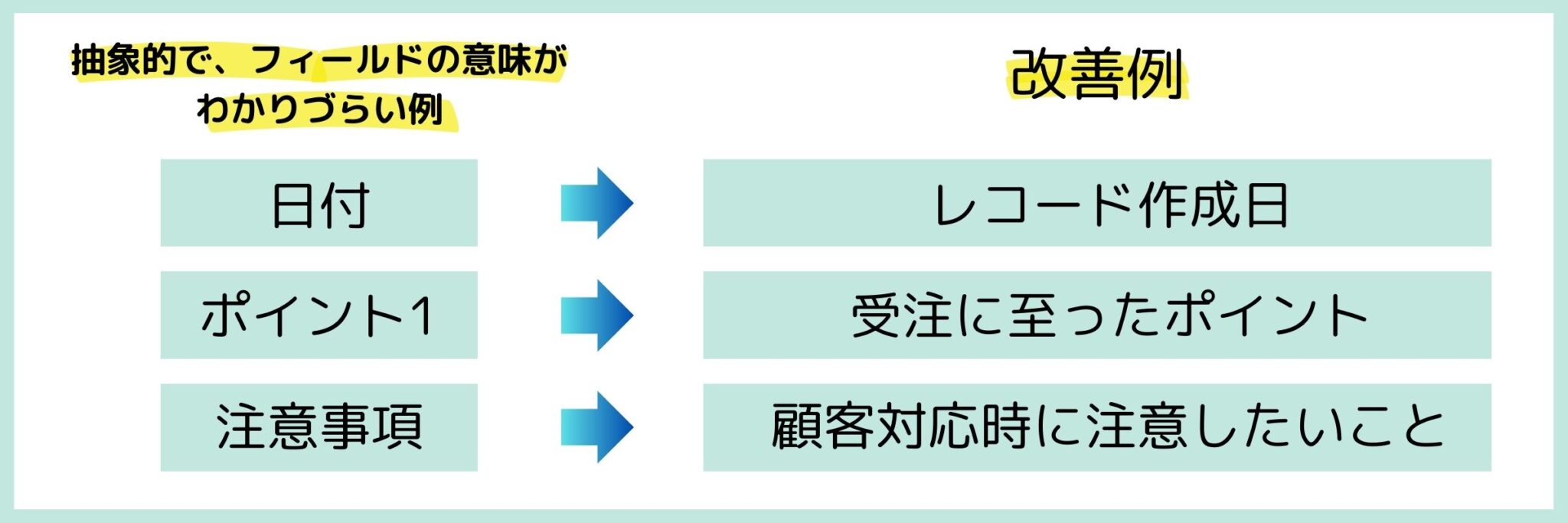
Make field names specific
A field name should concisely express what the field means. Avoid vague labels such as "Remarks" or "Notes."
We recommend settling on an initial set of field names, then refining them in consultation with users.
Keep data entry to a minimum
Typing text is more of a burden on users than you might imagine. Wherever possible, replace text entry with radio buttons or check boxes.
If there are fields that serve no purpose (fields nobody uses), clean them up.
List Screen
To make a list screen easy to use, check "who wants to see what information, and when."
You can also create a "my list" view that shows only the records assigned to you. Even when several people use the app, this lets you quickly check the records relevant to you.
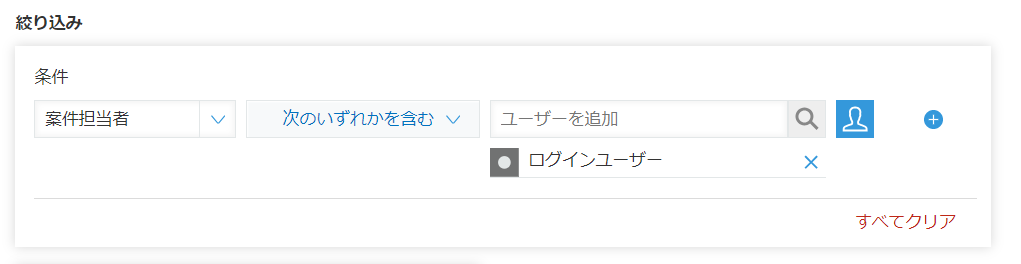
Source: Displaying a List of Records Assigned to You
Summary
Simplicity is key to an easy-to-use kintone, but relying on your own judgment alone is not a wise approach.
Start by making improvements in consultation with your users.
Drawing on our track record, bitRiver supports kintone implementation and customization specialized for customer and deal management. If you are facing challenges with customer or deal management, please feel free to contact us.
[Related Articles]