
PulsarWorks provides Kantan Code Reader for kintone, a kintone plugin. The company builds the Kanal-WEB Form Plan into its own offering and sells it as an event check-in solution that connects registration, on-site check-in, and booth visit records in kintone. This article introduces how the solution is put together and the part Kanal-WEB plays in it.
What makes event check-in so much work?
- Registration form answers are exported as CSV and imported into the attendee list again
- There is no way to hand each attendee their own QR code
- On the day, staff check names one by one against a paper list, and a line forms at reception
- Business cards collected at booths cannot be linked to what attendees entered when they registered
Built into their offering: what part does Kanal-WEB play?
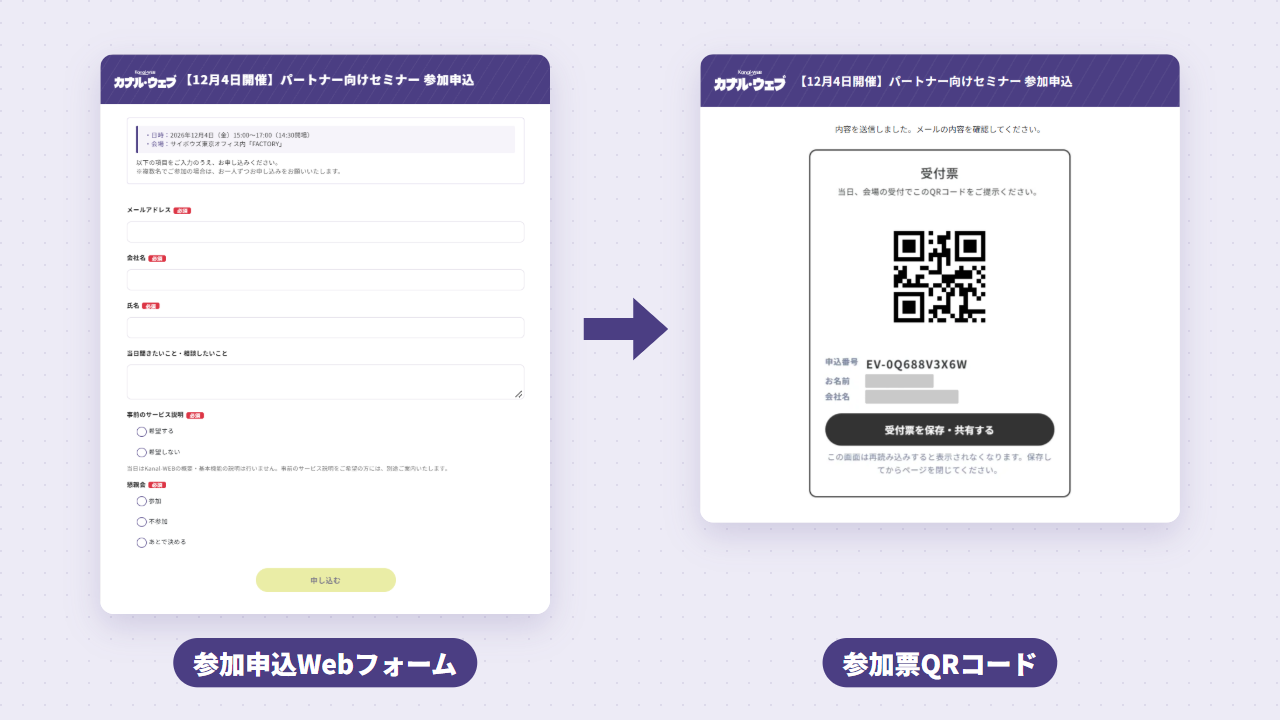
Kantan Code Reader for kintone is a plugin that scans QR codes in kintone apps. To accept registrations from attendees who do not have kintone accounts, however, you need a registration form outside kintone. PulsarWorks uses the Kanal-WEB Form Plan for this registration part and brings everything from registration to on-site check-in together in a single offering.
- Kanal-WEB (Form Plan): The registration web form. Registrations are saved automatically to the "Event Registration" app in kintone, and the completion screen shows a QR code with the registration number (the check-in ticket). Showing the QR code is a customization
- kintone: Three apps—"Event Registration," "Check-in," and "Booth Check-in"
- Kantan Code Reader for kintone (PulsarWorks): A plugin for the Check-in and Booth Check-in apps that scans QR codes with a device camera
From registration to on-site check-in
1. Before the event: register online and receive a QR code ticket
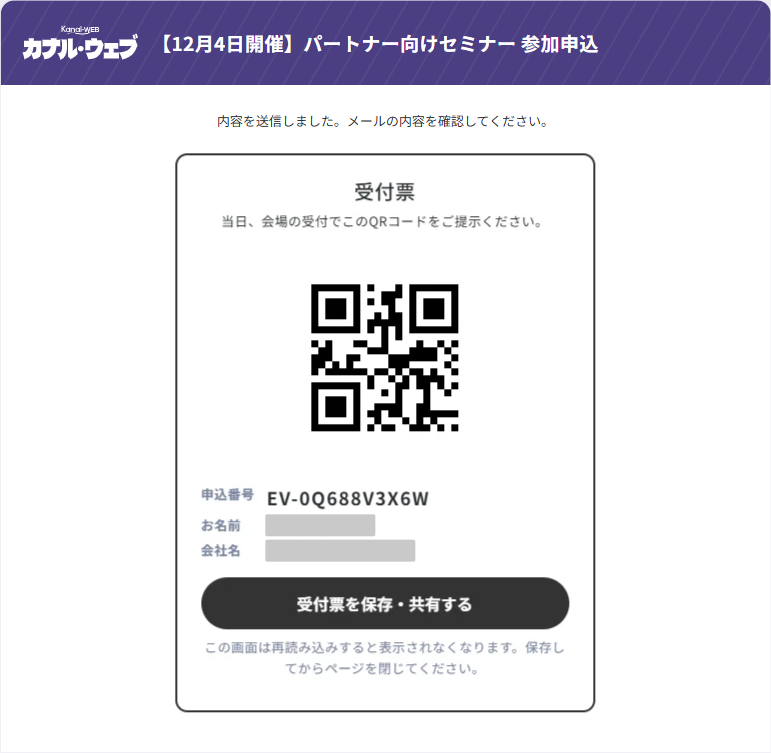
When an attendee registers through the web form, a registration number is assigned and the entry is saved automatically to the "Event Registration" app in kintone. The completion screen shows a check-in ticket with a QR code for the registration number. Attendees save or share the ticket and bring it on the day.
2. On the day: check in at the venue entrance
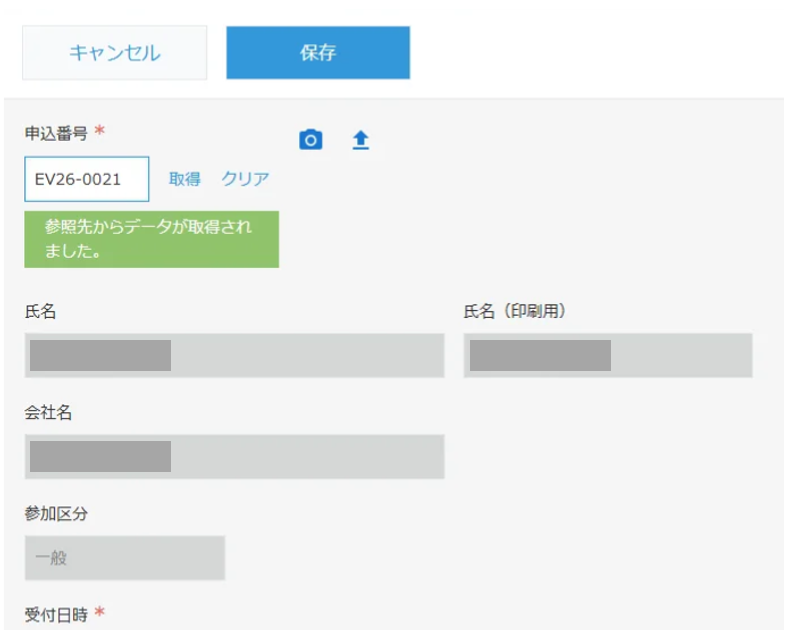
When staff scan the QR code with "Kantan Code Reader for kintone" on the reception device, the name and company fill in automatically from the registration number through a lookup, and saving the record completes check-in. The attendee count builds up in kintone on the spot. Attendees who forget their QR code can be found by name.
3. On the day: record booth visits
Scanning the QR code at an exhibition booth in the same way also fills in details entered at registration, such as age group. You can see the number of visitors and their attributes for each booth in kintone while the event is still running.
What the solution changes
- No dedicated equipment: The cameras on the PCs, tablets, and smartphones you already have become the scanners
- One system from reception to booths: Both entrance check-in and booth visit records take just a QR code scan
- Data stays in your own kintone: Use registration, attendance, and booth visit records for customer management and sales follow-up without moving CSV files around
Showing a QR code on the completion screen requires customizing Kanal-WEB. Setup costs are quoted based on your requirements, and the solution cannot be used with the kintone Light course. For details on the setup and an example of running costs, see PulsarWorks' introduction page (Japanese).
Getting started
To introduce the event check-in solution, contact PulsarWorks. They handle everything from preparing the apps and showing the QR code to running the event day.
If your company wants to offer Kanal-WEB together with your own products or services, or you would like advice on using web forms and My Page, use the Kanal-WEB free consultation.